Connecting Your Meta Business Manager
A step-by-step guide to securely granting Digital Clicks access to your Meta Business Manager and Facebook Page.
Overview
This guide shows you how to securely connect your Meta Business Manager with Digital Clicks so our team can help build, optimize, and report on your Facebook and Instagram campaigns.
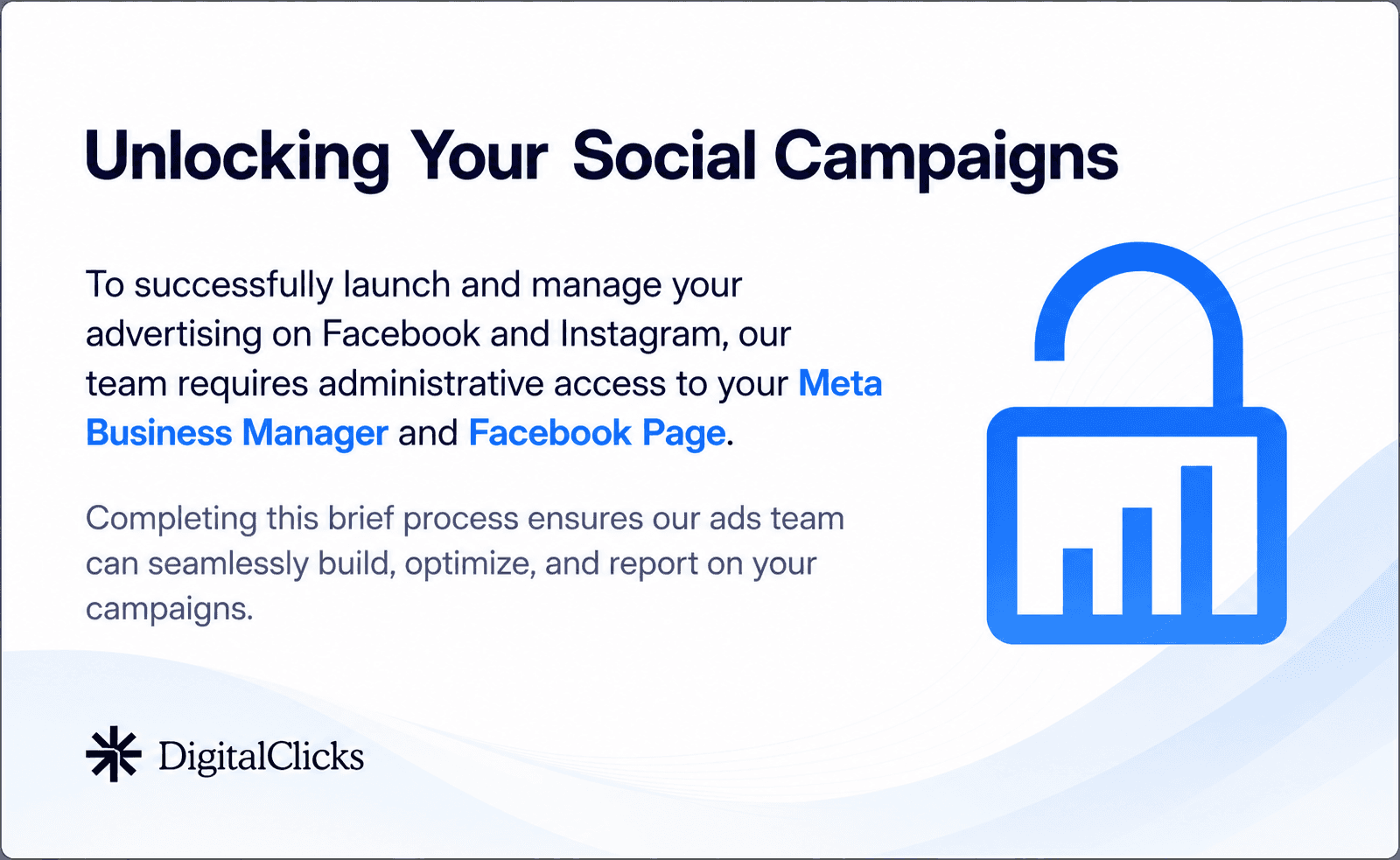
To successfully launch and manage your social advertising, Digital Clicks requires administrative access to your Meta Business Manager and Facebook Page. Completing this short setup process ensures our ads team can work inside the correct account without needing your login details.
Step 1: Navigate to Partners
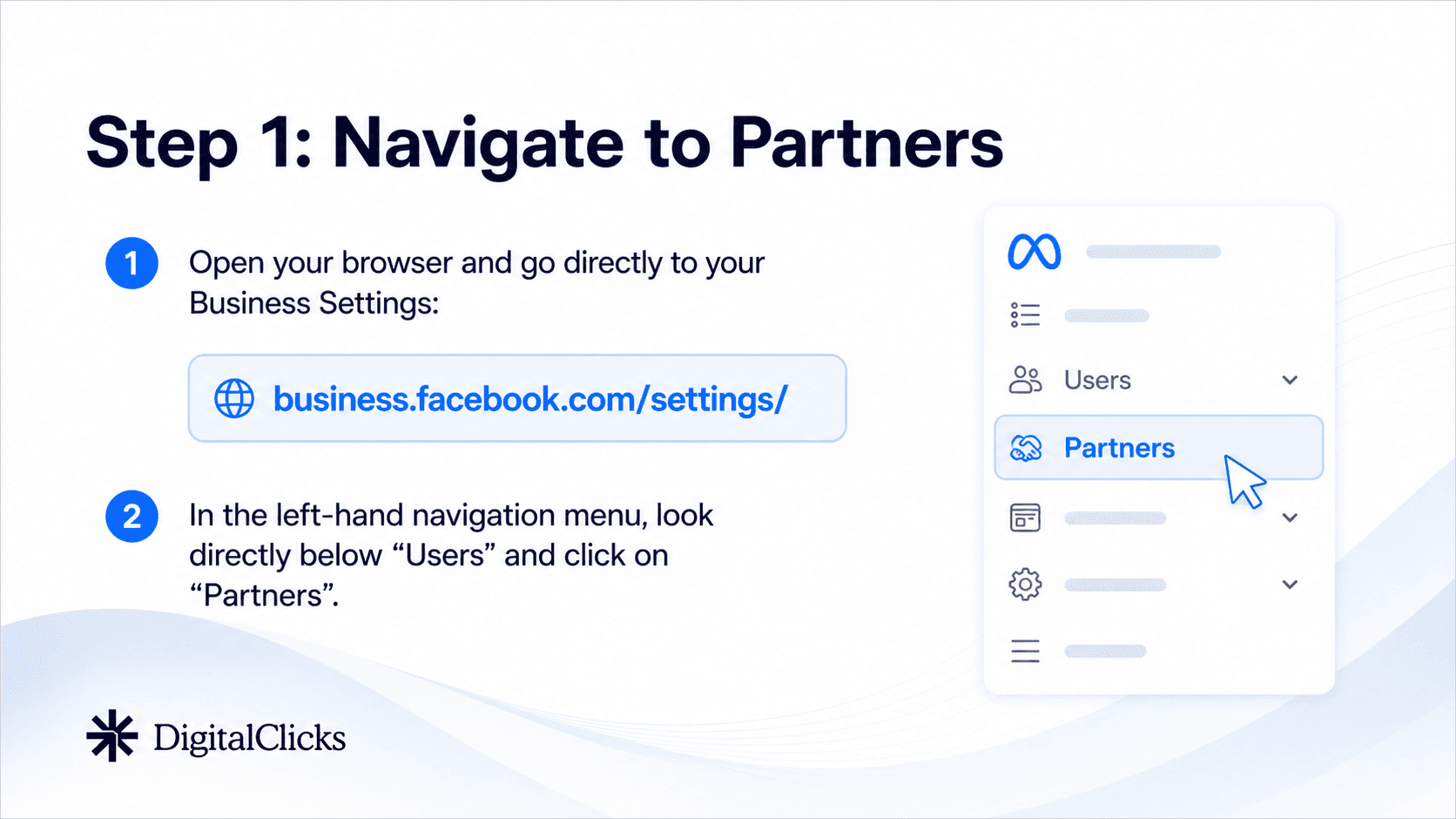
Open your browser and go to your Meta Business Settings page:
business.facebook.com/settings/
In the left-hand navigation menu, look under Users and click Partners. This is where Meta allows you to add external business partners, such as an agency, to your account.
Step 2: Add a New Partner
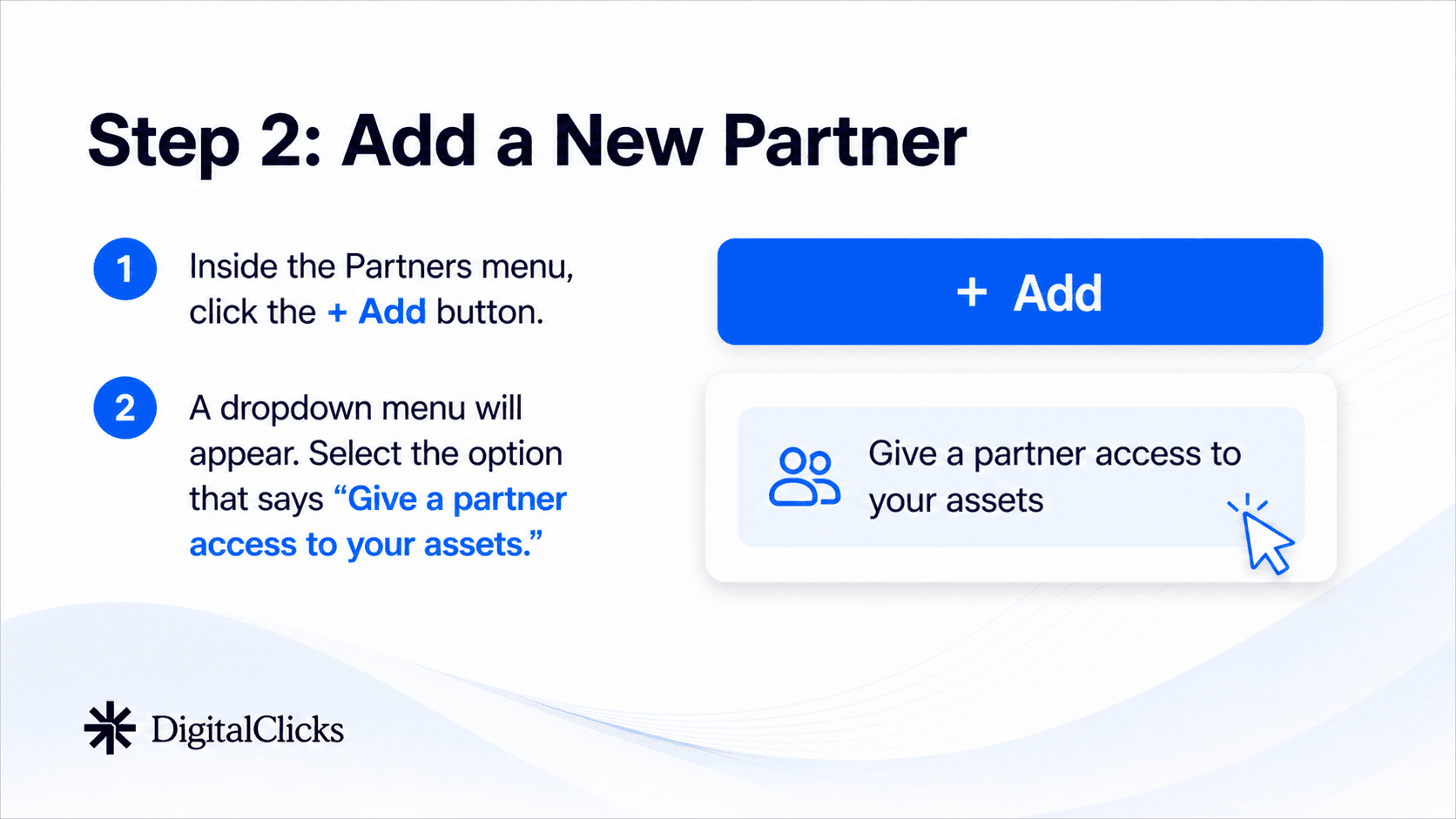
Inside the Partners menu, click the + Add button.
A dropdown menu will appear. Select the option that says Give a partner access to your assets. This tells Meta that you want to connect another business to specific pages, ad accounts, or other assets inside your Business Manager.
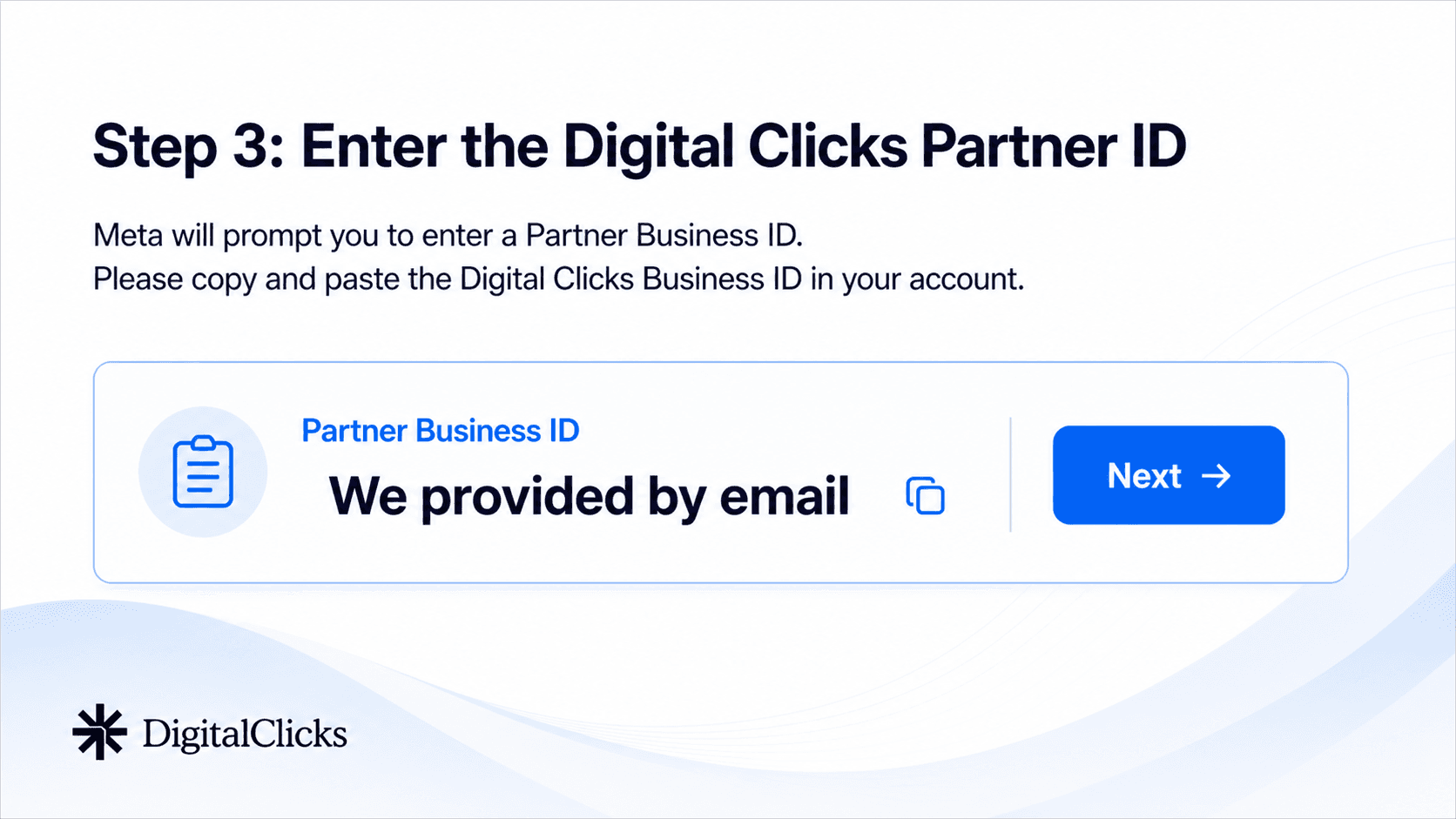
Step 3: Enter the Digital Clicks Partner ID
Meta will ask you to enter a Partner Business ID. Copy and paste the Digital Clicks Business ID into the field:
1XX XXX XXX XXX XXX
After entering the ID, click Next.
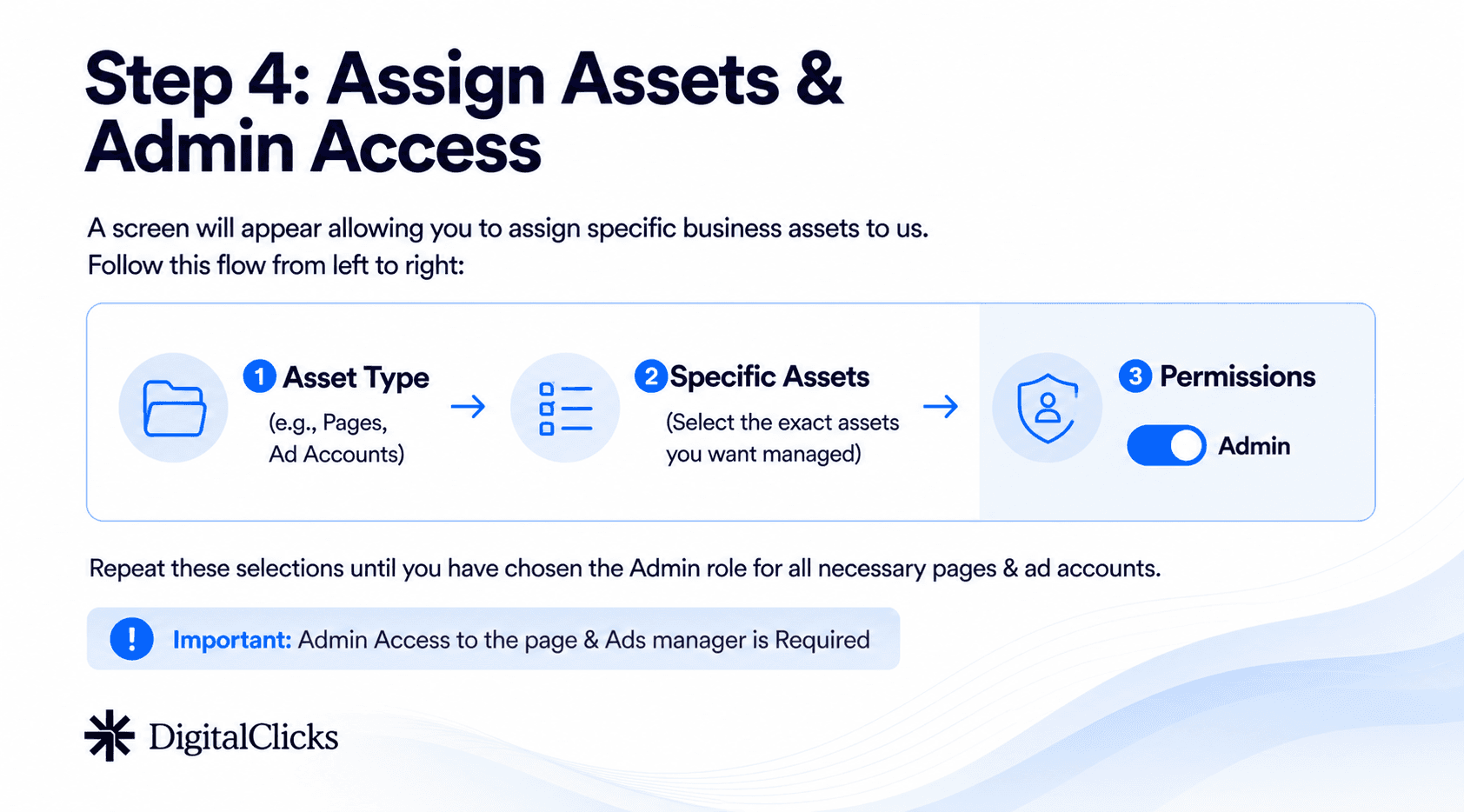
Step 4: Assign Assets and Admin Access
Meta will now ask you to choose which business assets Digital Clicks should have access to.
Follow the flow from left to right:
1. Select the asset type, such as Pages or Ad Accounts.
2. Choose the specific assets you want Digital Clicks to manage.
3. Turn on Admin permissions.
Repeat this process until you have selected the Admin role for all necessary Facebook Pages and ad accounts.
Important: Admin access is required for both the Facebook Page and the Ads Manager account so the Digital Clicks team can properly build, manage, optimize, and report on your campaigns.
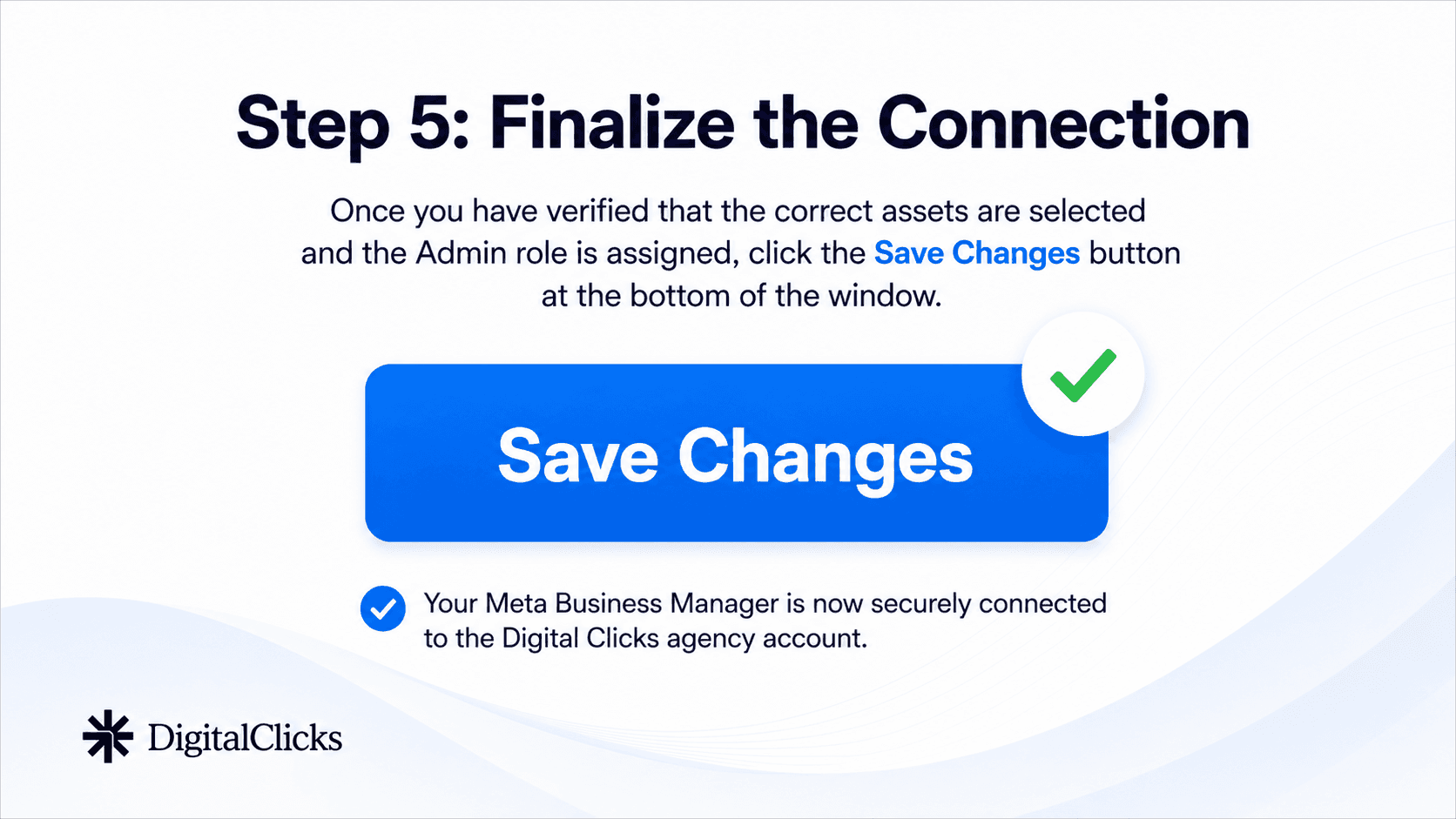
Step 5: Finalize the Connection
Once you have confirmed that the correct assets are selected and Admin access is assigned, click Save Changes at the bottom of the window.
Your Meta Business Manager will now be connected to the Digital Clicks agency account.
You Are Ready for Launch
Once Meta access has been granted, Digital Clicks can begin preparing your Facebook and Instagram advertising campaigns.
This helps our ads team move forward with campaign setup, optimization, and reporting without delays.
Need Help?
If you have trouble connecting your Meta Business Manager, contact the Digital Clicks team and we will walk you through the setup.
Email: admin@digitalclicks.ca
Phone: 1-877-926-2021

by
Scott Maloley
Scott Maloley is the President and Co-founder of Digital Clicks. A veteran strategist with over 15 years of real-world experience, Scott founded one of Canada’s first dedicated SEM agencies to help operators replace digital noise with revenue-driven clarity. He operates under a singular, disciplined thesis: marketing is math, not magic.
Follow me on:
Engineered Growth Solutions
Move beyond "button-pushing" with integrated SEM, SEO, and Analytics strategies built to scale your bottom line.
guides
Read more guides

Contact
25 Baseline Rd, W. Suite 14. London, ON
N6J 1V1 Canada.
1-877-926-2021
Hours: M–F, 9 AM–5 PM







Join 500+ Brands Scaling with Precision since 2010
For over 15 years, we’ve helped hundreds of businesses stop guessing and start growing. Join the partners who value bottom-line results over empty metrics.
FAQ

Scott Maloley
Founder @ Digital Clicks
Speak with us
Frequently Asked Questions
What types of businesses do you work with?
We work with growth-focused ecommerce brands, automotive dealerships and dealer groups, and small to mid-sized businesses across North America. Based in London, Ontario, we help clients on both sides of the border improve paid media performance, increase search visibility, and turn more traffic into revenue.
What marketing channels do you actually manage?
Are you an ecommerce agency or a performance marketing agency?
How do you decide whether to start with Google, Meta, TikTok, or SEO?
Can you help if we are already running ads, but performance is inconsistent?
Do you focus only on traffic, or also on conversions?
How do you measure success?
Will we keep control of our accounts and data?
What does onboarding look like?
Connecting Your Meta Business Manager
A step-by-step guide to securely granting Digital Clicks access to your Meta Business Manager and Facebook Page.
Overview
This guide shows you how to securely connect your Meta Business Manager with Digital Clicks so our team can help build, optimize, and report on your Facebook and Instagram campaigns.
To successfully launch and manage your social advertising, Digital Clicks requires administrative access to your Meta Business Manager and Facebook Page. Completing this short setup process ensures our ads team can work inside the correct account without needing your login details.
Step 1: Navigate to Partners
Open your browser and go to your Meta Business Settings page:
business.facebook.com/settings/
In the left-hand navigation menu, look under Users and click Partners. This is where Meta allows you to add external business partners, such as an agency, to your account.
Step 2: Add a New Partner
Inside the Partners menu, click the + Add button.
A dropdown menu will appear. Select the option that says Give a partner access to your assets. This tells Meta that you want to connect another business to specific pages, ad accounts, or other assets inside your Business Manager.
Step 3: Enter the Digital Clicks Partner ID
Meta will ask you to enter a Partner Business ID. Copy and paste the Digital Clicks Business ID into the field:
1XX XXX XXX XXX XXX
After entering the ID, click Next.
Step 4: Assign Assets and Admin Access
Meta will now ask you to choose which business assets Digital Clicks should have access to.
Follow the flow from left to right:
1. Select the asset type, such as Pages or Ad Accounts.
2. Choose the specific assets you want Digital Clicks to manage.
3. Turn on Admin permissions.
Repeat this process until you have selected the Admin role for all necessary Facebook Pages and ad accounts.
Important: Admin access is required for both the Facebook Page and the Ads Manager account so the Digital Clicks team can properly build, manage, optimize, and report on your campaigns.
Step 5: Finalize the Connection
Once you have confirmed that the correct assets are selected and Admin access is assigned, click Save Changes at the bottom of the window.
Your Meta Business Manager will now be connected to the Digital Clicks agency account.
You Are Ready for Launch
Once Meta access has been granted, Digital Clicks can begin preparing your Facebook and Instagram advertising campaigns.
This helps our ads team move forward with campaign setup, optimization, and reporting without delays.
Need Help?
If you have trouble connecting your Meta Business Manager, contact the Digital Clicks team and we will walk you through the setup.
Email: admin@digitalclicks.ca
Phone: 1-877-926-2021
by
Scott Maloley
Scott Maloley is the President and Co-founder of Digital Clicks. A veteran strategist with over 15 years of real-world experience, Scott founded one of Canada’s first dedicated SEM agencies to help operators replace digital noise with revenue-driven clarity. He operates under a singular, disciplined thesis: marketing is math, not magic.
Follow me on:
Engineered Growth Solutions
Move beyond "button-pushing" with integrated SEM, SEO, and Analytics strategies built to scale your bottom line.
guides
Read more guides
Join our LIST
Contact
grow@digitalclicks.ca
25 Baseline Rd, W. Suite 14. London, ON
N6J 1V1 Canada.
1-877-926-2021
Hours: M–F, 9 AM–5 PM
Join 500+ Brands Scaling with Precision since 2010
For over 15 years, we’ve helped hundreds of businesses stop guessing and start growing. Join the partners who value bottom-line results over empty metrics.
FAQ
Frequently Asked Questions
What types of businesses do you work with?
We work with growth-focused ecommerce brands, automotive dealerships and dealer groups, and small to mid-sized businesses across North America. Based in London, Ontario, we help clients on both sides of the border improve paid media performance, increase search visibility, and turn more traffic into revenue.
What marketing channels do you actually manage?
Are you an ecommerce agency or a performance marketing agency?
How do you decide whether to start with Google, Meta, TikTok, or SEO?
Can you help if we are already running ads, but performance is inconsistent?
Do you focus only on traffic, or also on conversions?
How do you measure success?
Will we keep control of our accounts and data?
What does onboarding look like?
Connecting Your Meta Business Manager
A step-by-step guide to securely granting Digital Clicks access to your Meta Business Manager and Facebook Page.
Overview
This guide shows you how to securely connect your Meta Business Manager with Digital Clicks so our team can help build, optimize, and report on your Facebook and Instagram campaigns.
To successfully launch and manage your social advertising, Digital Clicks requires administrative access to your Meta Business Manager and Facebook Page. Completing this short setup process ensures our ads team can work inside the correct account without needing your login details.
Step 1: Navigate to Partners
Open your browser and go to your Meta Business Settings page:
business.facebook.com/settings/
In the left-hand navigation menu, look under Users and click Partners. This is where Meta allows you to add external business partners, such as an agency, to your account.
Step 2: Add a New Partner
Inside the Partners menu, click the + Add button.
A dropdown menu will appear. Select the option that says Give a partner access to your assets. This tells Meta that you want to connect another business to specific pages, ad accounts, or other assets inside your Business Manager.
Step 3: Enter the Digital Clicks Partner ID
Meta will ask you to enter a Partner Business ID. Copy and paste the Digital Clicks Business ID into the field:
1XX XXX XXX XXX XXX
After entering the ID, click Next.
Step 4: Assign Assets and Admin Access
Meta will now ask you to choose which business assets Digital Clicks should have access to.
Follow the flow from left to right:
1. Select the asset type, such as Pages or Ad Accounts.
2. Choose the specific assets you want Digital Clicks to manage.
3. Turn on Admin permissions.
Repeat this process until you have selected the Admin role for all necessary Facebook Pages and ad accounts.
Important: Admin access is required for both the Facebook Page and the Ads Manager account so the Digital Clicks team can properly build, manage, optimize, and report on your campaigns.
Step 5: Finalize the Connection
Once you have confirmed that the correct assets are selected and Admin access is assigned, click Save Changes at the bottom of the window.
Your Meta Business Manager will now be connected to the Digital Clicks agency account.
You Are Ready for Launch
Once Meta access has been granted, Digital Clicks can begin preparing your Facebook and Instagram advertising campaigns.
This helps our ads team move forward with campaign setup, optimization, and reporting without delays.
Need Help?
If you have trouble connecting your Meta Business Manager, contact the Digital Clicks team and we will walk you through the setup.
Email: admin@digitalclicks.ca
Phone: 1-877-926-2021
by
Scott Maloley
Scott Maloley is the President and Co-founder of Digital Clicks. A veteran strategist with over 15 years of real-world experience, Scott founded one of Canada’s first dedicated SEM agencies to help operators replace digital noise with revenue-driven clarity. He operates under a singular, disciplined thesis: marketing is math, not magic.
Follow me on:
Engineered Growth Solutions
Move beyond "button-pushing" with integrated SEM, SEO, and Analytics strategies built to scale your bottom line.
guides
Read more guides
Join our LIST
Contact
25 Baseline Rd, W. Suite 14. London, ON
N6J 1V1 Canada.
1-877-926-2021
Hours: M–F, 9 AM–5 PM
Join 500+ Brands Scaling with Precision since 2010
For over 15 years, we’ve helped hundreds of businesses stop guessing and start growing. Join the partners who value bottom-line results over empty metrics.
FAQ
Frequently Asked Questions
What types of businesses do you work with?
We work with growth-focused ecommerce brands, automotive dealerships and dealer groups, and small to mid-sized businesses across North America. Based in London, Ontario, we help clients on both sides of the border improve paid media performance, increase search visibility, and turn more traffic into revenue.