Granting Merchant Center Access
A simple step-by-step guide to granting Digital Clicks access to your Google Merchant Center account.
Overview
This guide shows you how to grant Digital Clicks access to your Google Merchant Center account. Once access is added, our team can help support your Merchant Center setup, product visibility, and related campaign work.
Before You Begin
Before starting, make sure you can sign in to the correct Google Merchant Center account. You also need permission to manage users or add new people to the account.
The email address to add is:
admin@digitalclicks.ca
Step 1: Open Access and Services
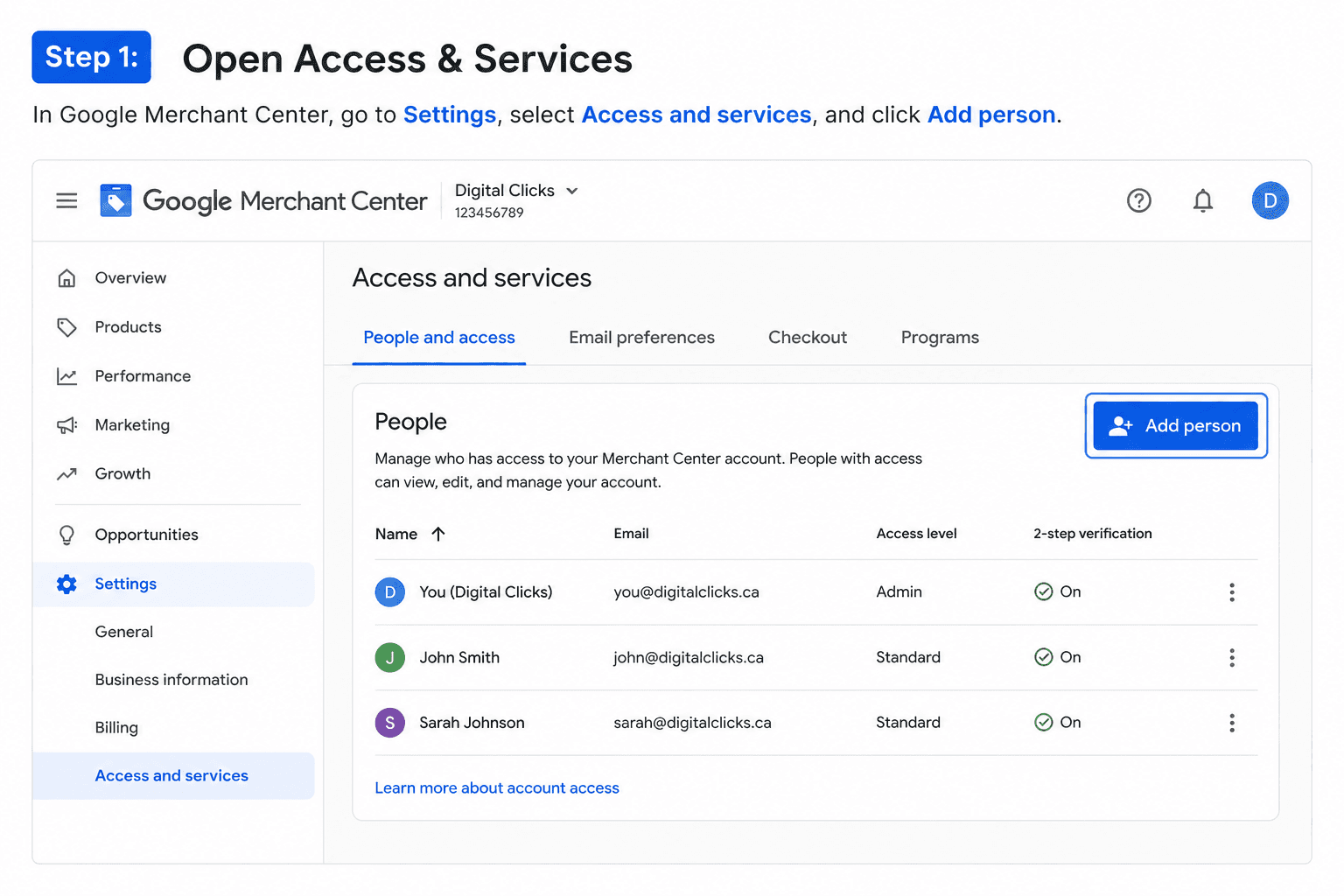
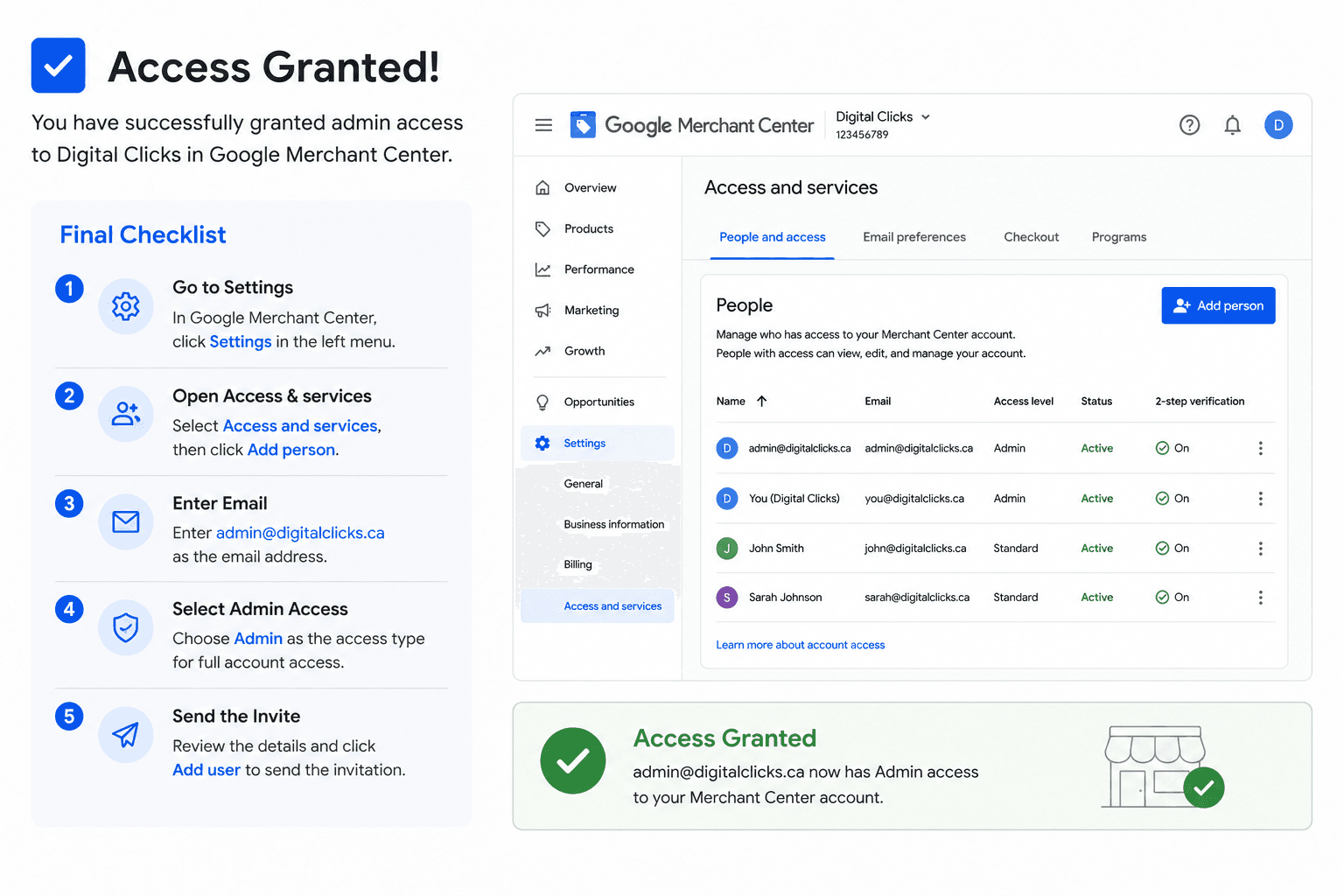
In Google Merchant Center, open the Settings area. Then go to Access and services. Under the People and access tab, click Add person.
Step 2: Enter the Digital Clicks Email and Select Access
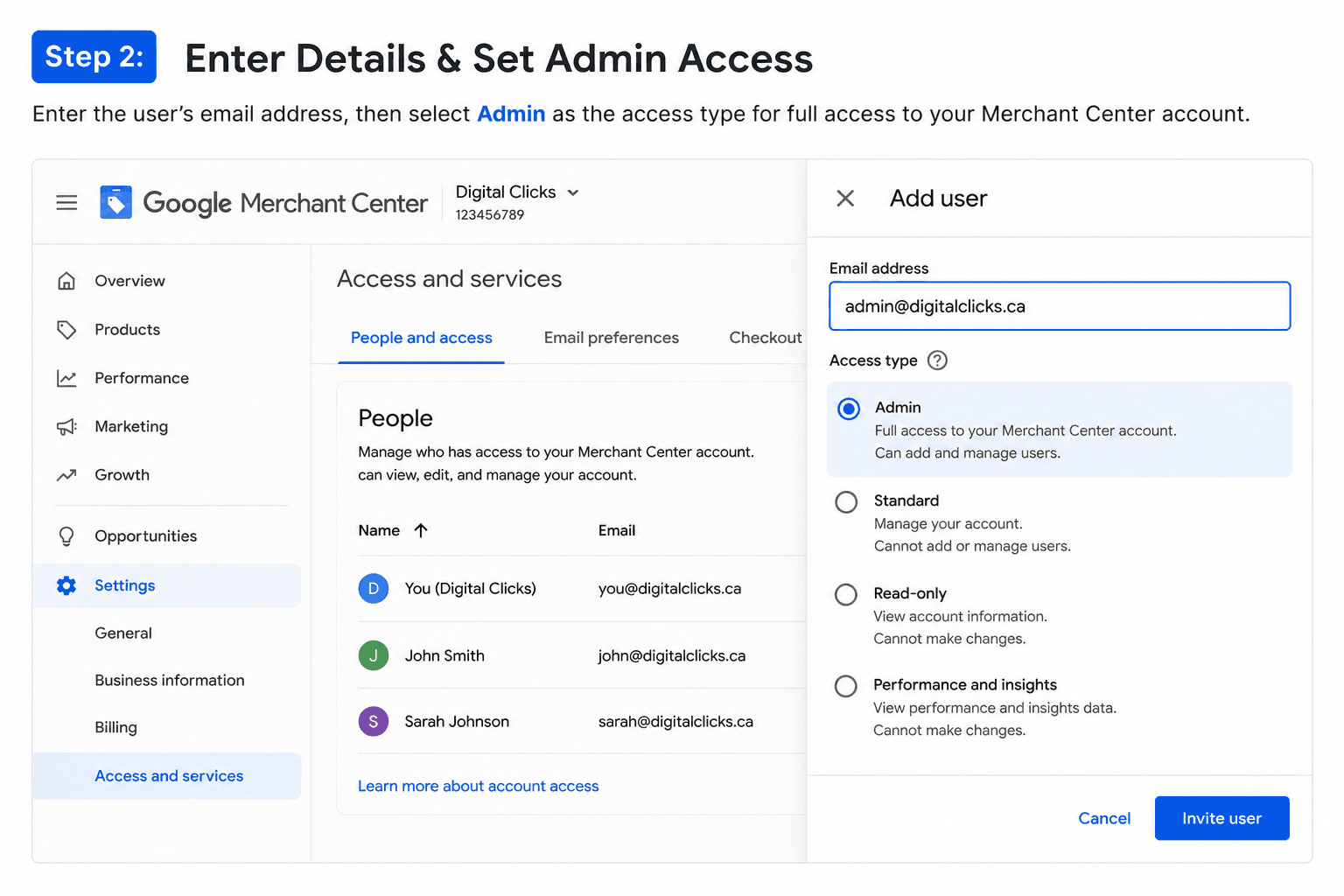
In the Add user window, enter admin@digitalclicks.ca in the Email address field.
Next, select the Admin access level .
Step 3: Send the Invite
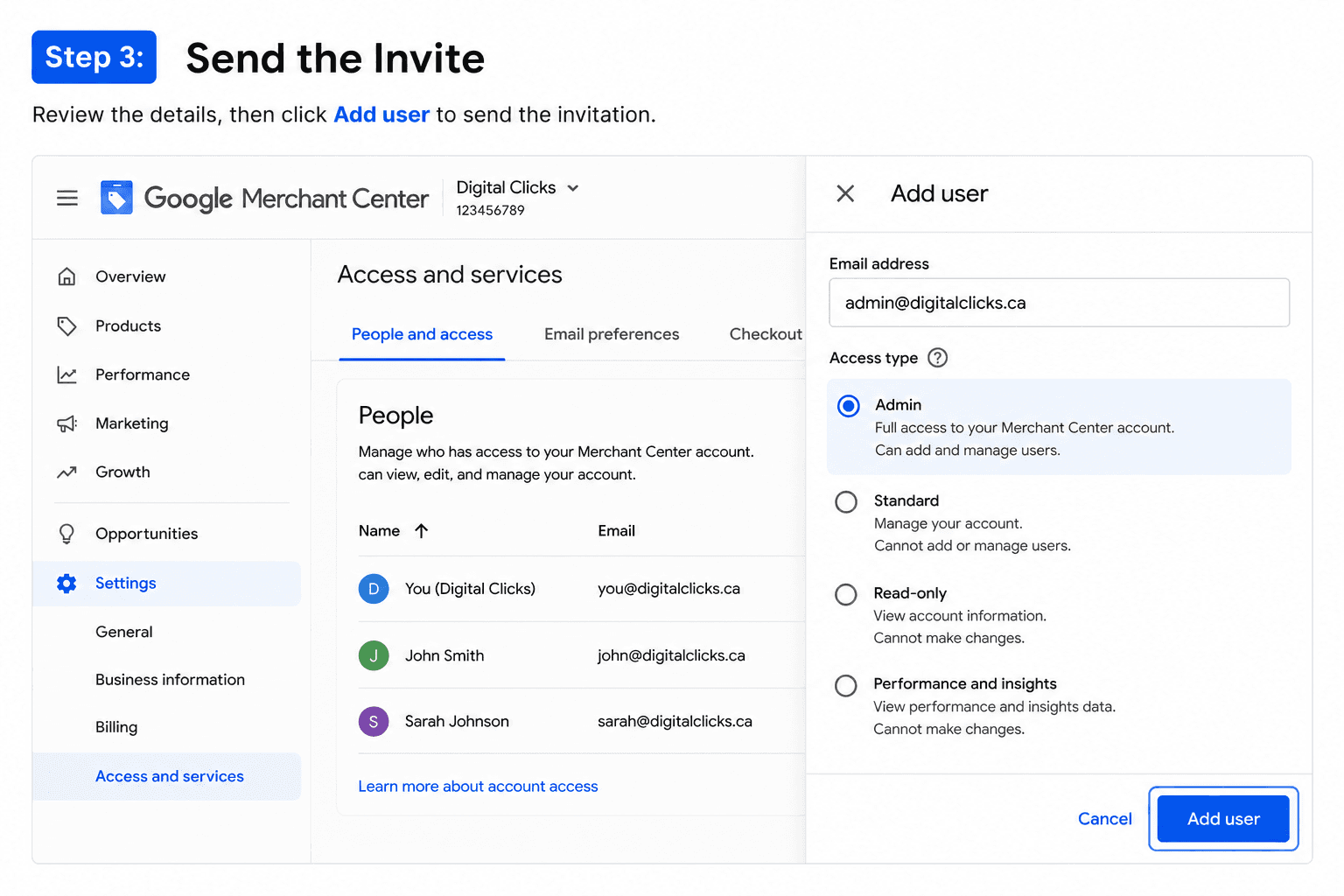
Once the email address and access level are correct, click Add user to send the invite.
Before clicking Add user, quickly double-check that the email address is correct and that the selected access level matches what your business approved.
Final Checklist: Confirm Access Was Added
After the invite is sent, review the People and access section to confirm the user was added correctly.
Check that admin@digitalclicks.ca appears in the people list, that the access level is correct, and that the status is active or successfully granted.
Need Help?
If you have trouble granting Merchant Center access, contact the Digital Clicks team and we will walk you through the setup.
Email: admin@digitalclicks.ca
Phone: 1-877-926-2021

by
Scott Maloley
Scott Maloley is the President and Co-founder of Digital Clicks. A veteran strategist with over 15 years of real-world experience, Scott founded one of Canada’s first dedicated SEM agencies to help operators replace digital noise with revenue-driven clarity. He operates under a singular, disciplined thesis: marketing is math, not magic.
Follow me on:
Engineered Growth Solutions
Move beyond "button-pushing" with integrated SEM, SEO, and Analytics strategies built to scale your bottom line.
guides
Read more guides

Contact
25 Baseline Rd, W. Suite 14. London, ON
N6J 1V1 Canada.
1-877-926-2021
Hours: M–F, 9 AM–5 PM







Join 500+ Brands Scaling with Precision since 2010
For over 15 years, we’ve helped hundreds of businesses stop guessing and start growing. Join the partners who value bottom-line results over empty metrics.
FAQ

Scott Maloley
Founder @ Digital Clicks
Speak with us
Frequently Asked Questions
What types of businesses do you work with?
We work with growth-focused ecommerce brands, automotive dealerships and dealer groups, and small to mid-sized businesses across North America. Based in London, Ontario, we help clients on both sides of the border improve paid media performance, increase search visibility, and turn more traffic into revenue.
What marketing channels do you actually manage?
Are you an ecommerce agency or a performance marketing agency?
How do you decide whether to start with Google, Meta, TikTok, or SEO?
Can you help if we are already running ads, but performance is inconsistent?
Do you focus only on traffic, or also on conversions?
How do you measure success?
Will we keep control of our accounts and data?
What does onboarding look like?
Granting Merchant Center Access
A simple step-by-step guide to granting Digital Clicks access to your Google Merchant Center account.
Overview
This guide shows you how to grant Digital Clicks access to your Google Merchant Center account. Once access is added, our team can help support your Merchant Center setup, product visibility, and related campaign work.
Before You Begin
Before starting, make sure you can sign in to the correct Google Merchant Center account. You also need permission to manage users or add new people to the account.
The email address to add is:
admin@digitalclicks.ca
Step 1: Open Access and Services
In Google Merchant Center, open the Settings area. Then go to Access and services. Under the People and access tab, click Add person.
Step 2: Enter the Digital Clicks Email and Select Access
In the Add user window, enter admin@digitalclicks.ca in the Email address field.
Next, select the Admin access level .
Step 3: Send the Invite
Once the email address and access level are correct, click Add user to send the invite.
Before clicking Add user, quickly double-check that the email address is correct and that the selected access level matches what your business approved.
Final Checklist: Confirm Access Was Added
After the invite is sent, review the People and access section to confirm the user was added correctly.
Check that admin@digitalclicks.ca appears in the people list, that the access level is correct, and that the status is active or successfully granted.
Need Help?
If you have trouble granting Merchant Center access, contact the Digital Clicks team and we will walk you through the setup.
Email: admin@digitalclicks.ca
Phone: 1-877-926-2021
by
Scott Maloley
Scott Maloley is the President and Co-founder of Digital Clicks. A veteran strategist with over 15 years of real-world experience, Scott founded one of Canada’s first dedicated SEM agencies to help operators replace digital noise with revenue-driven clarity. He operates under a singular, disciplined thesis: marketing is math, not magic.
Follow me on:
Engineered Growth Solutions
Move beyond "button-pushing" with integrated SEM, SEO, and Analytics strategies built to scale your bottom line.
guides
Read more guides
Join our LIST
Contact
grow@digitalclicks.ca
25 Baseline Rd, W. Suite 14. London, ON
N6J 1V1 Canada.
1-877-926-2021
Hours: M–F, 9 AM–5 PM
Join 500+ Brands Scaling with Precision since 2010
For over 15 years, we’ve helped hundreds of businesses stop guessing and start growing. Join the partners who value bottom-line results over empty metrics.
FAQ
Frequently Asked Questions
What types of businesses do you work with?
We work with growth-focused ecommerce brands, automotive dealerships and dealer groups, and small to mid-sized businesses across North America. Based in London, Ontario, we help clients on both sides of the border improve paid media performance, increase search visibility, and turn more traffic into revenue.
What marketing channels do you actually manage?
Are you an ecommerce agency or a performance marketing agency?
How do you decide whether to start with Google, Meta, TikTok, or SEO?
Can you help if we are already running ads, but performance is inconsistent?
Do you focus only on traffic, or also on conversions?
How do you measure success?
Will we keep control of our accounts and data?
What does onboarding look like?
Granting Merchant Center Access
A simple step-by-step guide to granting Digital Clicks access to your Google Merchant Center account.
Overview
This guide shows you how to grant Digital Clicks access to your Google Merchant Center account. Once access is added, our team can help support your Merchant Center setup, product visibility, and related campaign work.
Before You Begin
Before starting, make sure you can sign in to the correct Google Merchant Center account. You also need permission to manage users or add new people to the account.
The email address to add is:
admin@digitalclicks.ca
Step 1: Open Access and Services
In Google Merchant Center, open the Settings area. Then go to Access and services. Under the People and access tab, click Add person.
Step 2: Enter the Digital Clicks Email and Select Access
In the Add user window, enter admin@digitalclicks.ca in the Email address field.
Next, select the Admin access level .
Step 3: Send the Invite
Once the email address and access level are correct, click Add user to send the invite.
Before clicking Add user, quickly double-check that the email address is correct and that the selected access level matches what your business approved.
Final Checklist: Confirm Access Was Added
After the invite is sent, review the People and access section to confirm the user was added correctly.
Check that admin@digitalclicks.ca appears in the people list, that the access level is correct, and that the status is active or successfully granted.
Need Help?
If you have trouble granting Merchant Center access, contact the Digital Clicks team and we will walk you through the setup.
Email: admin@digitalclicks.ca
Phone: 1-877-926-2021
by
Scott Maloley
Scott Maloley is the President and Co-founder of Digital Clicks. A veteran strategist with over 15 years of real-world experience, Scott founded one of Canada’s first dedicated SEM agencies to help operators replace digital noise with revenue-driven clarity. He operates under a singular, disciplined thesis: marketing is math, not magic.
Follow me on:
Engineered Growth Solutions
Move beyond "button-pushing" with integrated SEM, SEO, and Analytics strategies built to scale your bottom line.
guides
Read more guides
Join our LIST
Contact
25 Baseline Rd, W. Suite 14. London, ON
N6J 1V1 Canada.
1-877-926-2021
Hours: M–F, 9 AM–5 PM
Join 500+ Brands Scaling with Precision since 2010
For over 15 years, we’ve helped hundreds of businesses stop guessing and start growing. Join the partners who value bottom-line results over empty metrics.
FAQ
Frequently Asked Questions
What types of businesses do you work with?
We work with growth-focused ecommerce brands, automotive dealerships and dealer groups, and small to mid-sized businesses across North America. Based in London, Ontario, we help clients on both sides of the border improve paid media performance, increase search visibility, and turn more traffic into revenue.